
Harden your LinkedIn account with stronger sign-in, session and app reviews, privacy controls, phishing checks, and a practical recovery plan.
LinkedIn profiles contain professional history, relationships, and messages that can make account takeover particularly useful for impersonation and targeted phishing. The following five-step review reduces common risks without requiring changes to your public professional identity. Menu names can change as LinkedIn updates its interface, so use Settings & Privacy search if a label has moved.
1. Strengthen sign-in and recovery
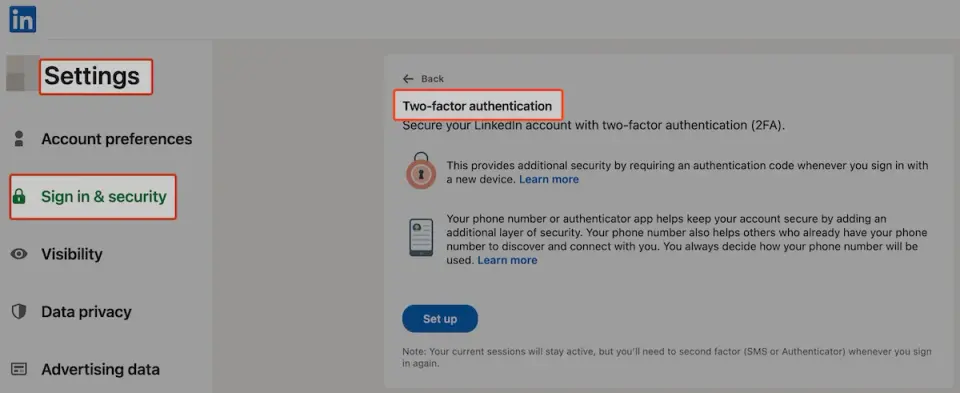
Turn on two-step verification
Open Settings & Privacy → Sign in & security → Two-step verification. When available, prefer an authenticator app over SMS. Two-step verification creates an additional barrier if a password is exposed, although no single control provides absolute protection.
Use a unique password
If the account still uses a password, generate a long, unique one with a password manager. Do not reuse the password for email, banking, or another social platform. You can perform a privacy-preserving exposure check with LeakData's password security tool.
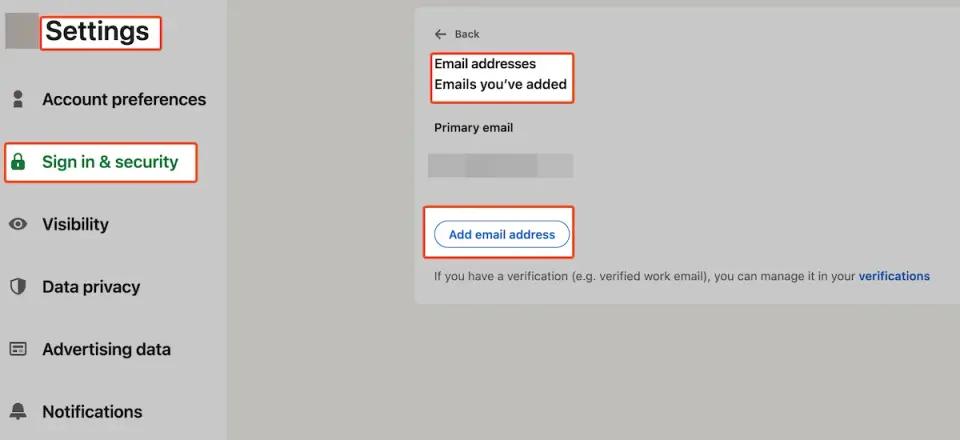
Protect recovery channels
Keep the primary email address and phone number current, remove channels you no longer control, and protect the email account with strong authentication. Recovery is part of account security, not an administrative afterthought.
2. Review sessions and connected applications
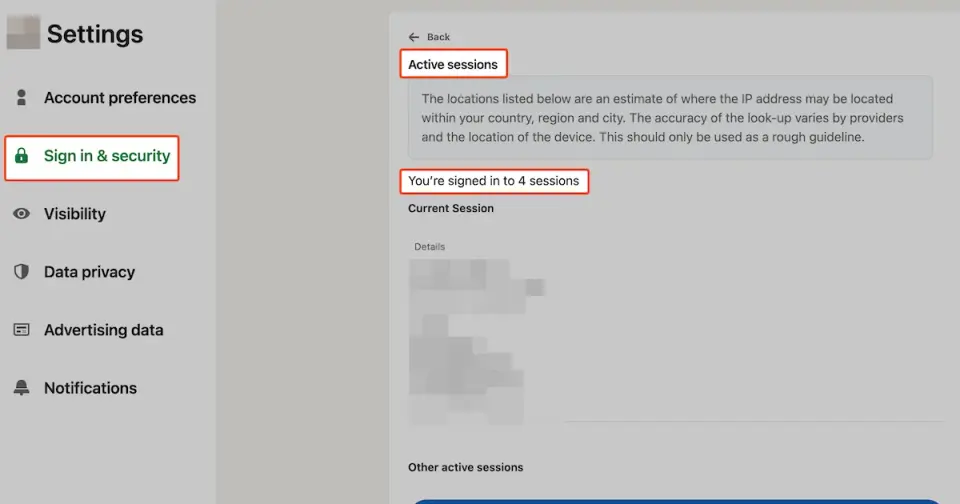
Inspect signed-in devices
Review the locations and devices where the account is signed in. End sessions you do not recognize or no longer use. If a session looks suspicious, change the password from a trusted device, review recovery details, and check recent account activity rather than only closing that one session.
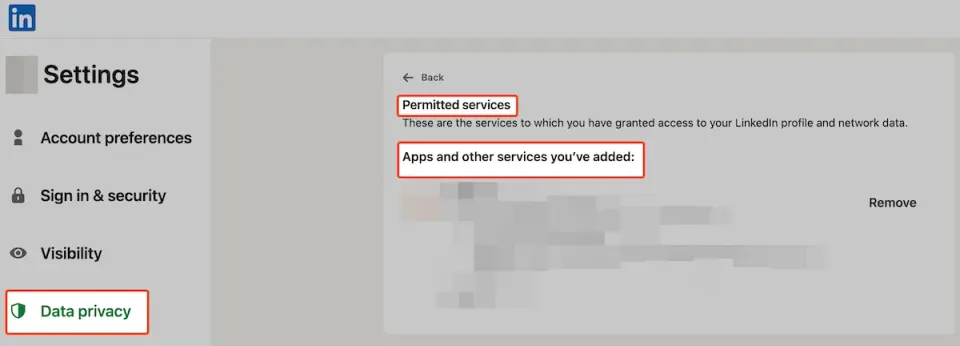
Remove unused third-party access
Revoke applications, websites, browser extensions, and automation tools that no longer need access. A connected application may retain permissions even when you have stopped using it. Review the provider and requested scope before approving a new connection.
3. Limit unnecessary public exposure
Public visibility is useful on a professional network, so the goal is not to hide everything. It is to avoid exposing contact details and relationship data that you do not need to publish.
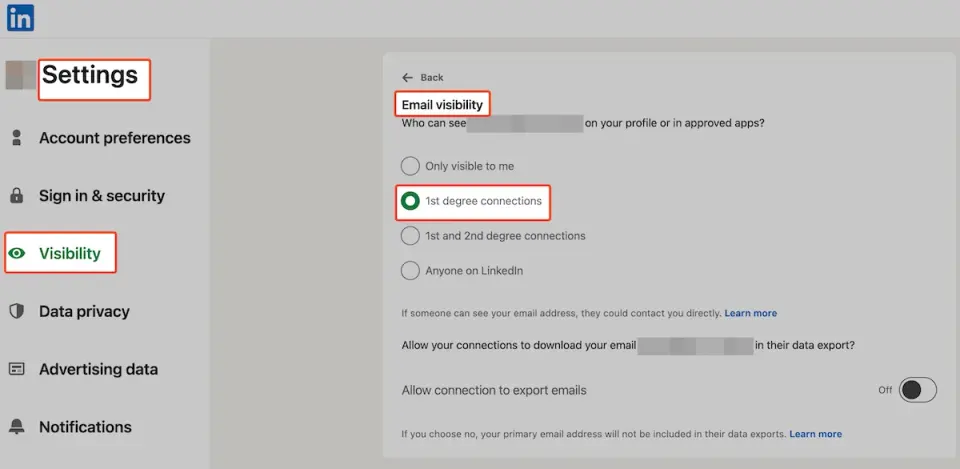
Restrict email visibility
Set email visibility to the smallest audience appropriate for your work. This reduces easy collection of an address used for targeted phishing and credential-stuffing attempts.
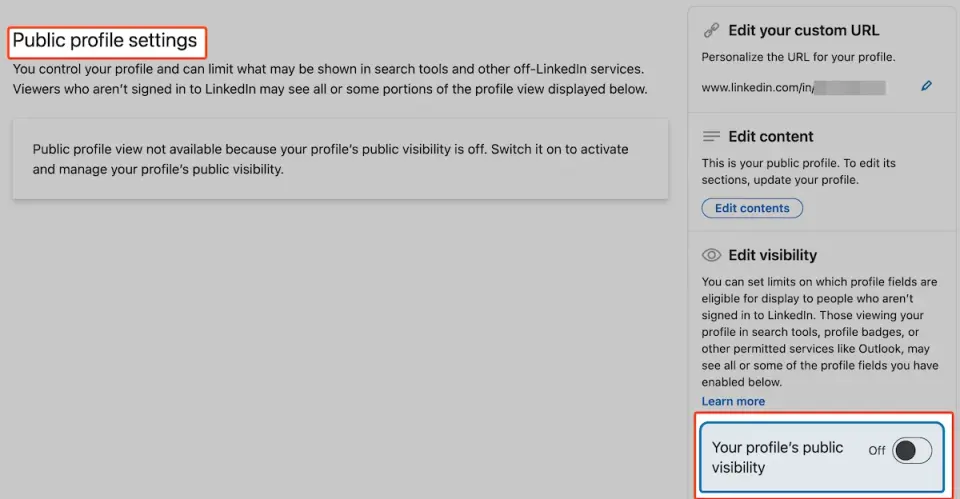
Review public-profile fields
Use the public profile preview to see what a signed-out visitor or search engine can access. Keep the information that supports professional discovery and hide personal detail that does not serve that purpose.
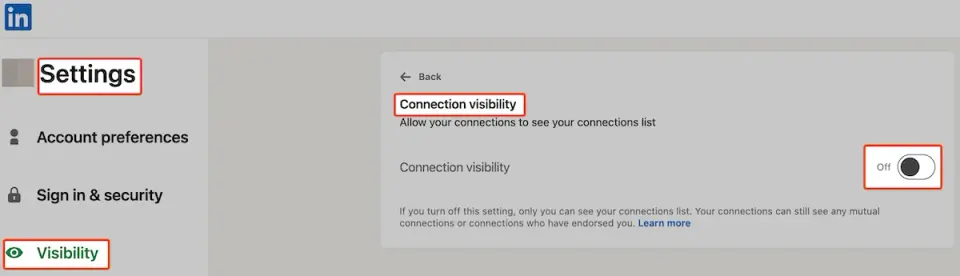
Limit connection-list visibility
Restrict who can browse your connection list if publishing the full network is unnecessary. This can make it harder for an impersonator to identify colleagues and approach them in your name.
4. Verify messages and connection requests
Treat urgency as a signal: unexpected job offers, payment requests, document downloads, cryptocurrency prompts, or immediate login links deserve independent verification.
Inspect the full profile: look at account age signals, work-history consistency, shared connections, activity, and verification indicators. No single signal proves that a profile is genuine or fake.
Verify through another channel: if a colleague sends an unusual link or request, contact them by a known phone number or established work channel. Their LinkedIn account may have been compromised.
Open the service directly: do not sign in through an unexpected message link. Navigate to LinkedIn yourself and check notifications there.
5. Monitor, report, and prepare recovery
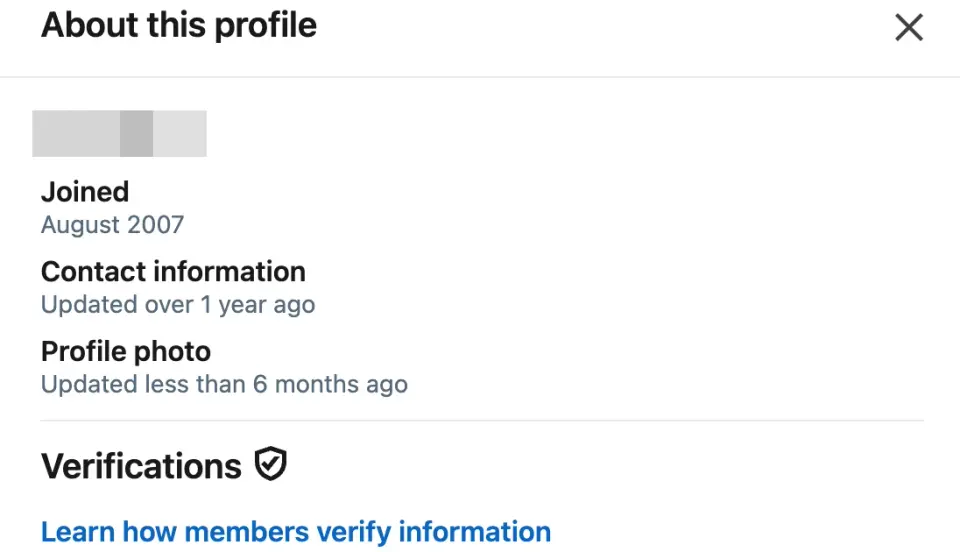
Use profile context
The “About this profile” view can provide context such as when an account joined or available verification signals. Treat it as one input, not a guarantee of identity.
Report suspicious activity
Report impersonation, scams, abusive messages, and suspicious accounts through LinkedIn's reporting tools. Preserve relevant screenshots or message details if an employer or law-enforcement report may be needed.
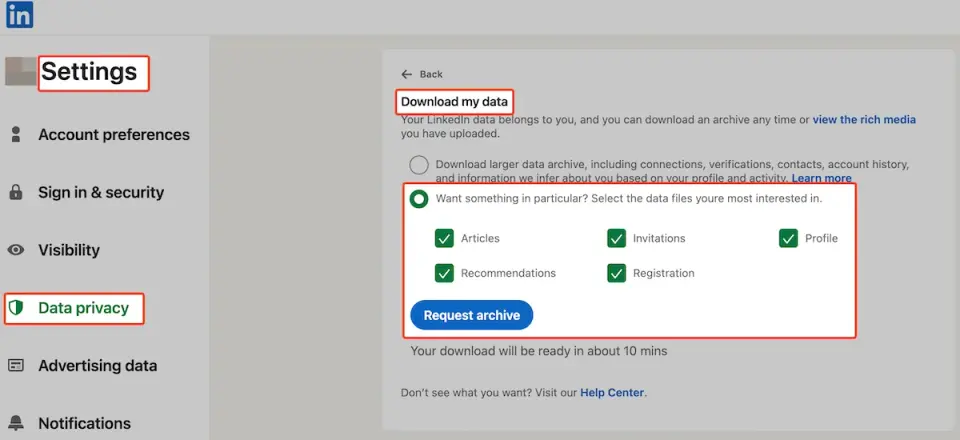
Keep a recovery record
Store recovery codes securely if the platform provides them and periodically download a copy of important account data. A data export is not a substitute for security, but it can support continuity and incident review.
Final checklist
Use unique credentials, two-step verification, controlled recovery channels, a short list of trusted connected apps, intentional profile visibility, and independent verification for unusual requests. If you receive an exposure signal, visit LinkedIn directly, review sessions and recovery settings, replace reused credentials, and monitor the email account tied to recovery.
LeakData's methodology overview explains how breach exposure signals are collected and presented. An exposure result is a prompt to investigate and reduce risk; it is not by itself proof that a specific account is currently controlled by an attacker.